 Download Pointofix
 Pen & marker
 Zoom 2×
 Freeze screen
 Highlighter
 Rectangles & ellipses
 Straight lines
 Text labels
 Save image
 Print
 Global hotkey


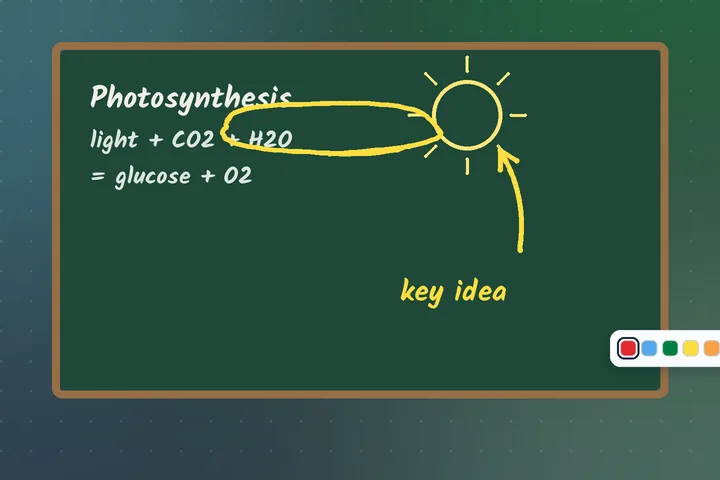
Classrooms
Teaching with a projector or smart board
Highlight grammar in a projected text, mark angles on a geometry figure, trace a river on a map — then save the final board as the lesson recap.
Free Screen annotation for Windows 7 · 10 · 11
Pointofix transforms your screen into an interactive workspace, allowing you to highlight important details, draw annotations, add visual emphasis, and communicate ideas more effectively. Whether presenting information, explaining complex concepts, or capturing attention during demonstrations, Pointofix makes on-screen communication clearer and more intuitive.
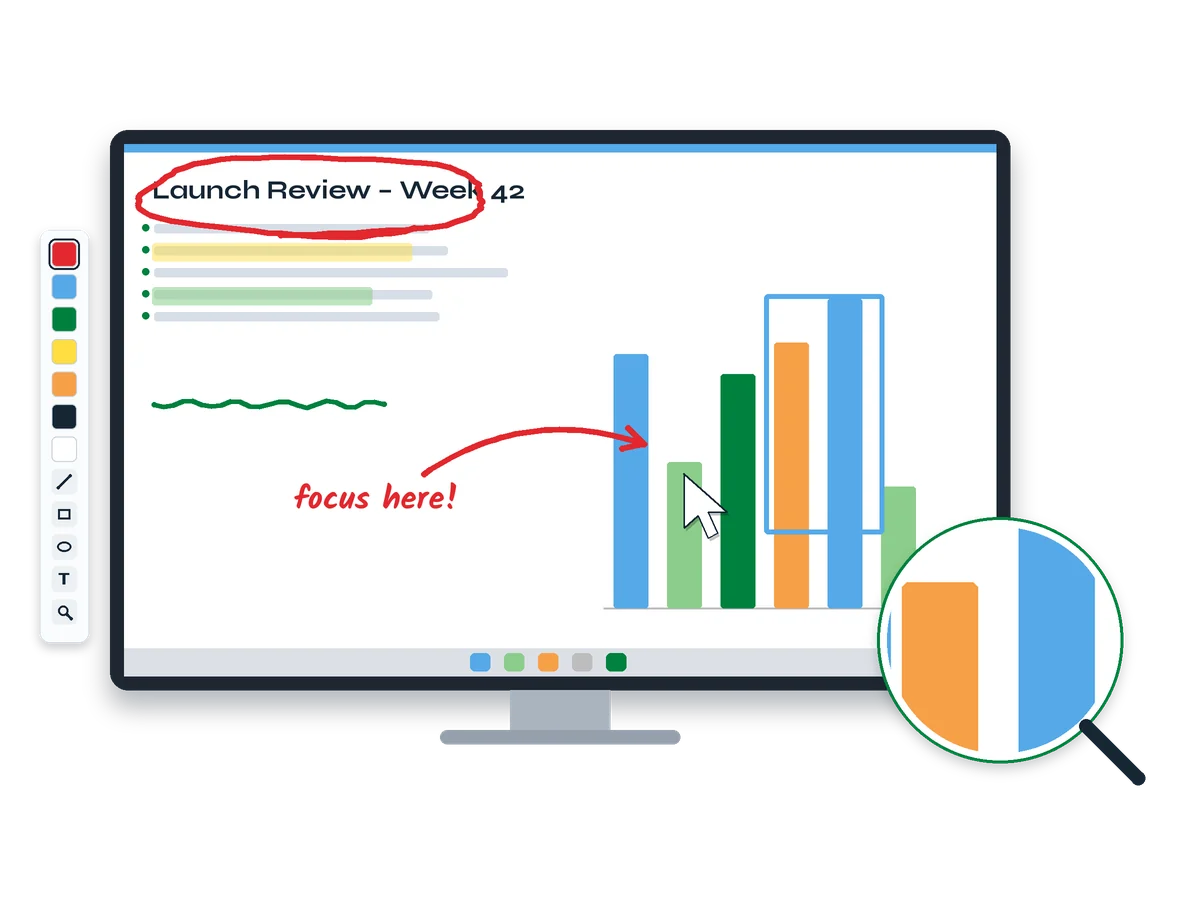 Pen & marker
Zoom 2×
Freeze screen
clear in one click
What is Pointofix
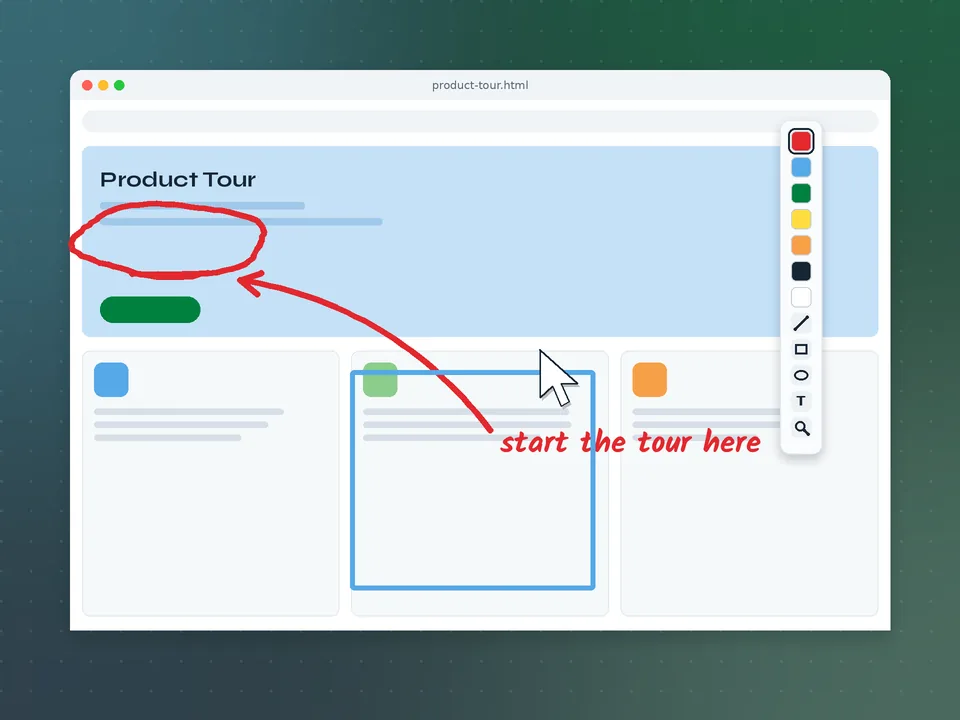
Pointofix began as a German tool for teachers and IT trainers and has kept that focus: help an audience see exactly what the presenter means. It waits in the Windows notification area. One hotkey or click holds the current screen still, a compact palette appears, and you can mark, frame, label and zoom. One more action gives your desktop back.
Because it draws over the screen rather than inside a single program, it works with almost anything you can display — including software that has no annotation feature of its own.
Features
Hover — or tap — a card to flip it and see what each tool does in a real session.
Circle, tick, underline or sketch anywhere on screen in the colour and width that suits the room.
A transparent stroke that keeps text readable underneath, exactly like a paper marker.
Clean geometric outlines to isolate an area or group related items.
Deliberate strokes that show how one element leads to another.
Readable labels instead of wobbly mouse handwriting.
Enlarge small print; live zoom follows the pointer through a dialog.
Content stays still while you draw, so marks stay on target.
Remove a stroke or wipe the whole layer — the document is never touched.
Store an annotated screen for handouts, recaps or support tickets.
Send a marked-up screen straight to the printer.
Start drawing from any program with a combination you choose.
Swap one .ini file for English or French menus — no reinstall.
↻ every card turns over
How it works
Every annotation follows the same short rhythm. Scroll down and the line fills as you go.
Press your hotkey or click the tray icon. The current screen is captured and held perfectly still.
Pick a colour and a tool from the palette — pen, highlighter, shape, text or zoom.
Draw over anything on screen and explain while the audience follows your strokes.
Save a copy if you need one, clear the drawing and return to the live desktop.
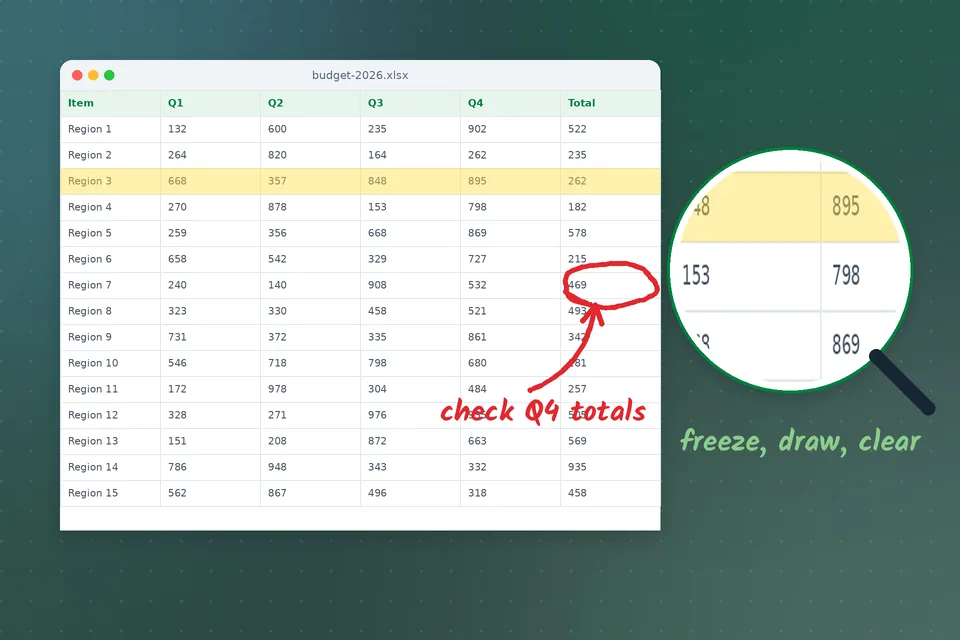
Installation
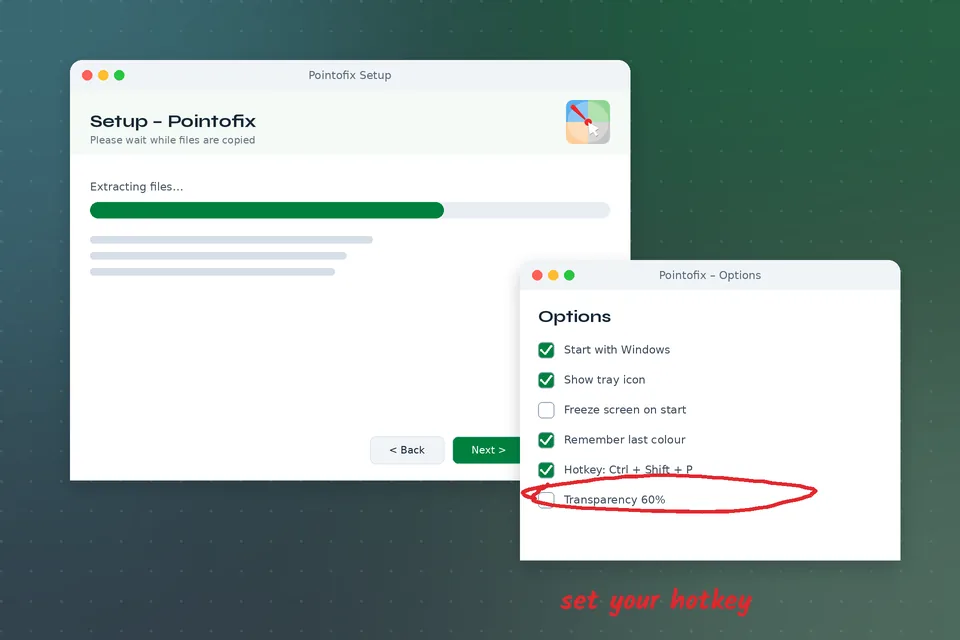
Setup takes about a minute. Choose your Windows version for the exact clicks; the language switch works the same everywhere.
Blurry or offset ink on a high-resolution laptop? pointofix.exe → Properties → Compatibility → Change high DPI settings → override with Application.
Turn on Focus assist while presenting so notifications never slide over your drawings.
Windows 7 no longer receives security updates. Pointofix needs no internet, so keep presentation PCs offline where you can.
.ini names are visible.pointofix_translation_en.ini (or the French file) from the language pack.C:\Program Files (x86)\Pointofix.pointofix_translation.ini.Full walkthroughs: Pointofix in English · Pointofix en français.
Use cases
A few well-placed marks save minutes of "no, the other button".
Highlight grammar in a projected text, mark angles on a geometry figure, trace a river on a map — then save the final board as the lesson recap.
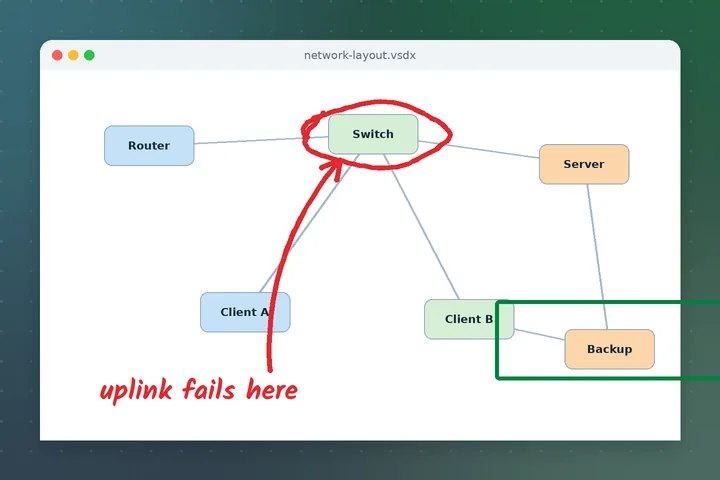
Box the area before you click, number each step in order, and keep every annotated screen as an illustrated handout.
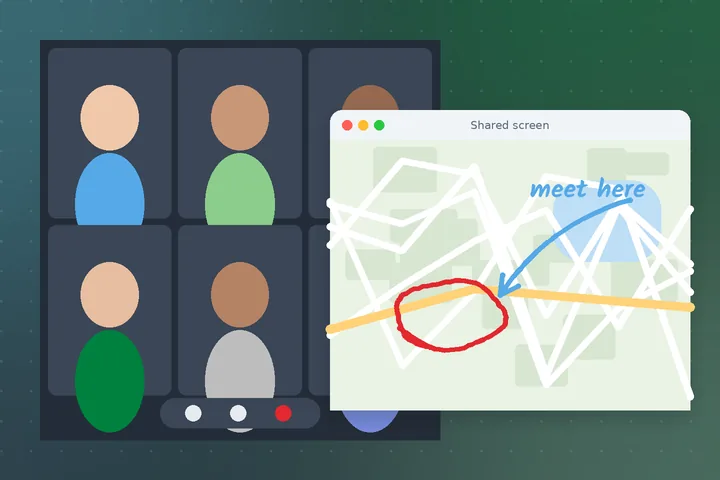
Share your full screen and annotate on top. Colleagues see exactly which figure, field or place you mean — without taking control of your PC.
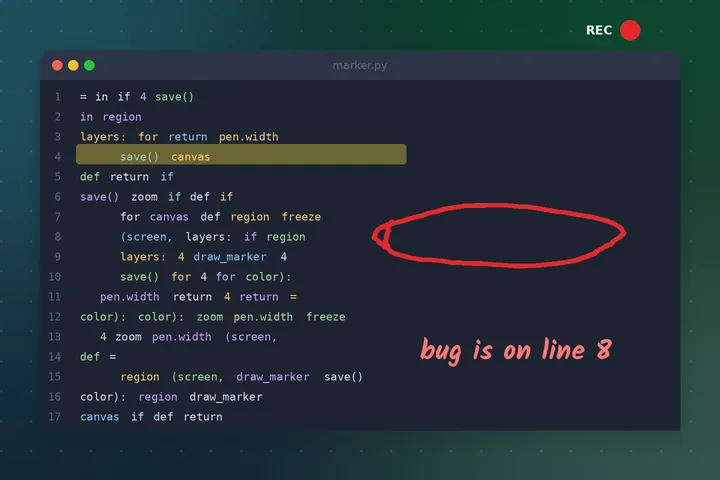
Point at a line of code or a setting while you record, so viewers follow without pausing to search.
Scroll sideways for more
Download
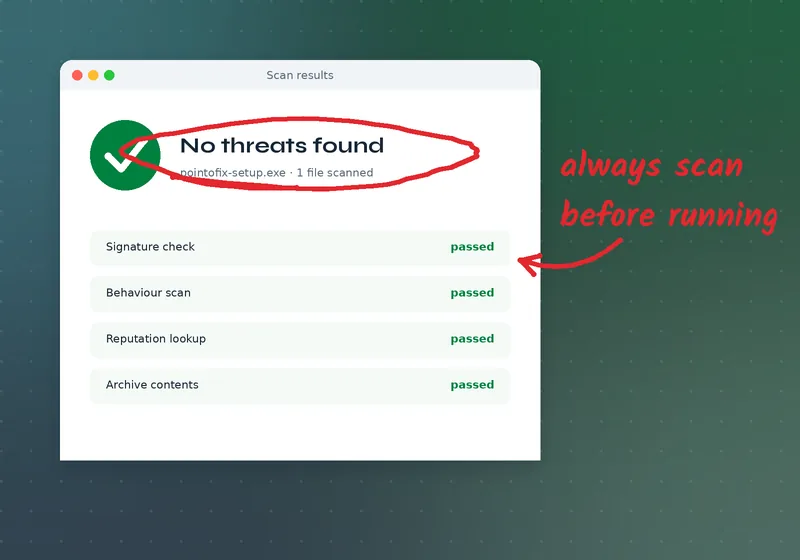
One compressed archive with the setup program, the language pack for English, French and other languages, and a readme. Extract it, scan it, install — you will be drawing on your screen within minutes.
Download PointofixCompatibility & comparison
Pointofix is a classic 32-bit Windows program: at home on almost every Windows PC still in use, and unavailable as a native app elsewhere.
Runs on the 64-bit system's built-in 32-bit layer. Use the DPI override on scaled screens. Guide
| Aspect | Pointofix | ZoomIt | gInk |
|---|---|---|---|
| Licence | Freeware | Free (Microsoft Sysinternals) | Free, open source |
| Working style | Visible palette with colour swatches and tools | Keyboard-driven, few on-screen controls | Floating dock with pen presets |
| Main strength | Marking up any screen in class or training | Zooming for technical demos | Lightweight live inking |
| Interface languages | German original; English, French and more via translation files | English | Several languages |
| Best for | Teachers, IT trainers, presenters who prefer clicking tools | Speakers comfortable with shortcuts | Users who want an open-source tool |
| Platform | Windows | Windows | Windows |
Troubleshooting
That is normal: Pointofix runs from the notification area beside the clock. Open the hidden-icons arrow and drag its icon onto the taskbar.
Turn on file name extensions and check the name is exactly pointofix_translation.ini — not .ini.txt — next to pointofix.exe. Exit from the tray and restart.
Display scaling is the cause. Right-click pointofix.exe → Properties → Compatibility → Change high DPI settings, enable the override and choose Application.
Another program probably owns that combination. Pick a different one in the options — Ctrl + Shift plus a letter is usually free. Avoid Windows-key shortcuts.
Apps running as administrator can block input from normal programs. Start Pointofix with Run as administrator for that session.
SmartScreen offers More info → Run anyway after you have scanned the file. Smart App Control on new Windows 11 installs may block unsigned apps outright — ask your administrator.
Share your entire screen rather than a single window, and use thicker strokes so lines survive video compression.
This can happen after unplugging a projector. Reconnect, set the correct main display, and restart Pointofix.
System requirements
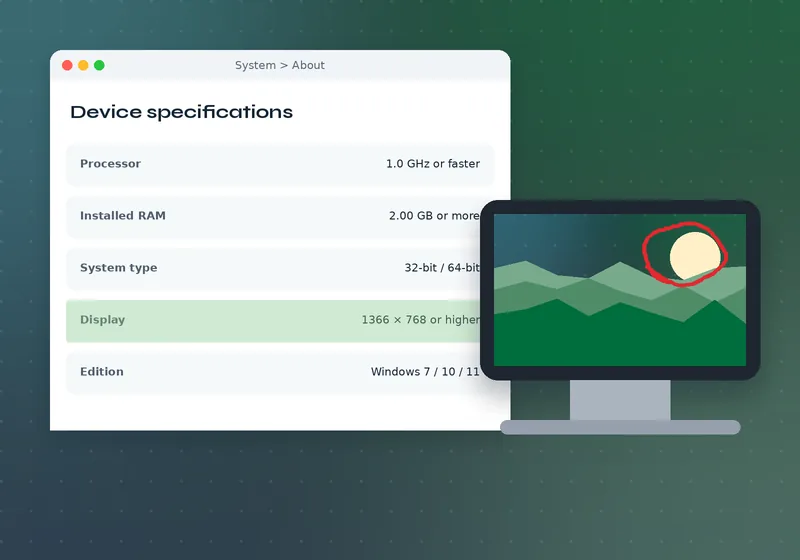
If a PC runs Windows comfortably, it runs Pointofix. Practical recommendations for smooth drawing and zooming:
Windows 7, 8.1, 10 or 11 — 32-bit or 64-bit
Any 1 GHz or faster x86/x64 CPU
2 GB RAM or more recommended for the system
A few megabytes for program and language files
Any resolution; projectors and multi-screen setups work
Administrator rights once, to install into Program Files
Safety
The program is simple: it runs locally, needs no account and never sends what you draw anywhere. The real risk with any freeware is the copy you download, so these habits matter most.
Pros & cons
FAQs
Short and direct. For depth, see the download walkthrough or techniques for teachers and trainers.
Yes. Pointofix is freeware. There is no trial period, no paid edition, no watermark and no registration. Any site offering a "pro key" or "crack" is not offering the genuine program.
Copy pointofix_translation_en.ini from the language pack into the Pointofix program folder, rename it to pointofix_translation.ini, then exit the program from the tray and start it again.
Yes. The language pack includes a French translation file. Place it in the program folder under the name pointofix_translation.ini and restart Pointofix to see French menus.
Yes. It runs as a 32-bit program on 64-bit Windows 11 without compatibility mode. On high-resolution laptops, set the high DPI override to Application if the ink looks blurry or offset.
Yes, on both 32-bit and 64-bit editions. On Windows 7, keep the PC offline where possible because the system no longer receives security updates.
No native macOS version exists, including under the spelling "point to fix mac". Mac users can run Pointofix inside a Windows virtual machine or choose a native Mac annotation tool.
No. Installation and everyday use work completely offline, and the program does not send your drawings anywhere.
Pointofix holds the current screen still in drawing mode so your marks stay aligned with what you are explaining. Clear the drawing and leave drawing mode to return to the live desktop.
Yes. You can save the annotated screen as an image or send it to a printer, which is useful for handouts, lesson recaps and support tickets.
Yes, when you share your entire screen. A single-window share may not include the drawing layer. Use thicker strokes so lines stay clear after video compression.


 Strengths