 9 min read
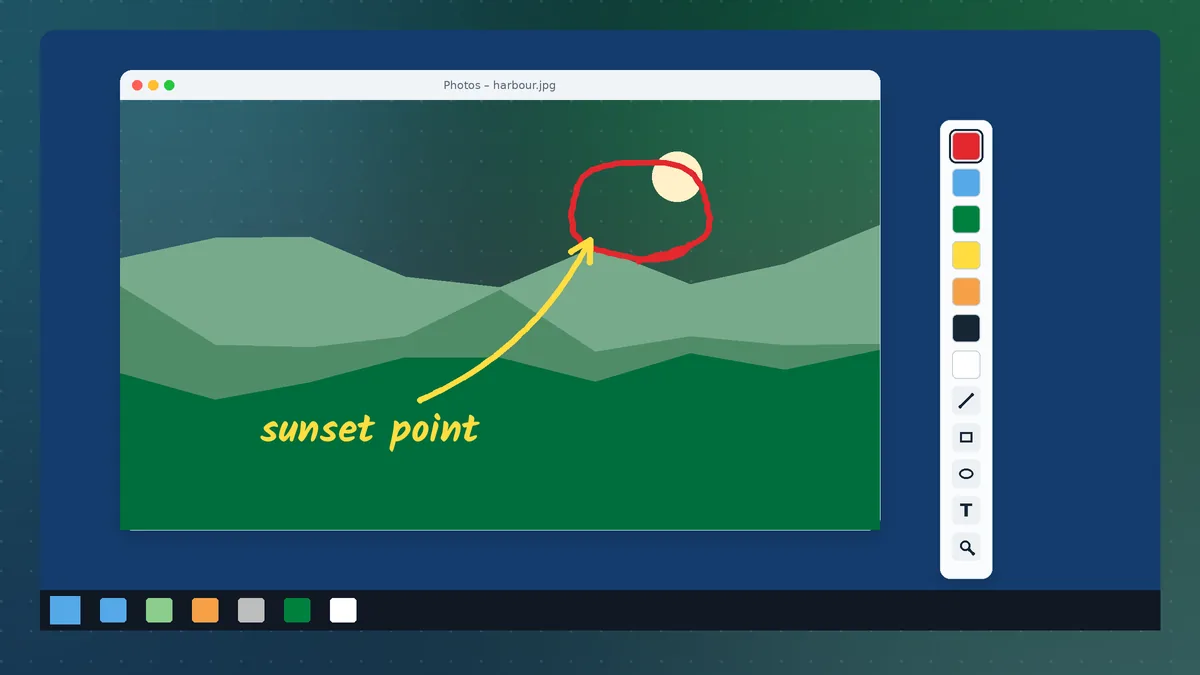
Windows 10 remains the operating system on a huge share of school computers, office desktops and training-room PCs, and it is a comfortable home for Pointofix. The program installs in under a minute, sits quietly in the notification area and is ready whenever you need to draw attention to something on screen. Still, a few Windows 10 behaviours — notification-area hiding, display scaling, Focus Assist and security prompts — can make the first experience bumpier than it needs to be. This guide covers Pointofix on Windows 10 from installation to a polished everyday routine.
Does Pointofix Run on Windows 10?
Yes. Pointofix is a classic 32-bit desktop application, and Windows 10 runs 32-bit programs natively on both its 32-bit and 64-bit editions. Home, Pro, Education and Enterprise editions all behave the same way. You do not need compatibility mode for normal use, and you do not need to install any runtime libraries.
Windows 10 reached the end of its general support period in October 2025, so many organisations are planning a move to Windows 11. If that applies to you, nothing about your Pointofix routine needs to change; the Windows 11 guide covers the small differences.
Installing on Windows 10
- Download the archive with the button on the homepage and save it to your Downloads folder.
- Right-click the archive and choose Scan with Microsoft Defender.
- Right-click it again and choose Extract All.
- Open the extracted folder and double-click the setup program.
- Approve the User Account Control prompt.
- Follow the wizard and finish.
If a SmartScreen panel appears with the heading "Windows protected your PC", click More info and Run anyway. SmartScreen reacts to how often a file is downloaded, and a small freeware tool will never have the download counts of a mainstream product. Only continue if the file passed the scan and came from the official download link here.
The default installation folder on 64-bit Windows 10 is C:\Program Files (x86)\Pointofix. If you need the interface in English or French, copy the matching translation file into that folder and rename it, as explained in the Pointofix English guide.
Making the Tray Icon Always Visible
Windows 10 hides most notification-area icons behind a small upward arrow. Pointofix lives in that area, so a hidden icon means an extra click every time.
- Right-click the taskbar and open Taskbar settings.
- Scroll to Notification area and click Select which icons appear on the taskbar.
- Switch Pointofix to On.
Alternatively, open the hidden icons flyout and drag the Pointofix icon down onto the taskbar.
Choosing a Hotkey That Works
The hotkey is what makes screen annotation feel instant. A good hotkey on Windows 10 is:
- Not already used by the system. Avoid Win-key combinations; Windows 10 reserves many of them.
- Not used by your presentation software. PowerPoint, for example, uses many single-letter and Ctrl shortcuts during slide shows.
- Comfortable with one hand. Ctrl + Shift plus a letter near the left side of the keyboard works well while your right hand holds the mouse.
Set it in the Pointofix options, click OK, and test it in the application you present most often. If nothing happens, another program has probably claimed the same combination first; choose a different one.
Fixing Blurry Ink or Offset Drawing on High-Resolution Screens
Many Windows 10 laptops use display scaling of 125 or 150 percent. Older programs that are not fully aware of scaling can show two symptoms: the drawing surface looks slightly blurred, or the line appears a little away from the mouse pointer.
The fix takes a minute:
- Open the Pointofix installation folder.
- Right-click
pointofix.exeand choose Properties. - Open the Compatibility tab and click Change high DPI settings.
- Tick Override high DPI scaling behavior and choose Application from the list.
- Click OK twice and restart Pointofix.
If the palette then looks very small on a 4K display, try the System (Enhanced) option instead and compare the results.
Working with Multiple Monitors
Presenters often use two screens: a laptop panel with notes and a projector or second monitor with the content the audience sees. Some practical habits help:
- Move the content you want to annotate to the screen you plan to draw on before activating drawing mode.
- Test the setup in advance on the actual hardware, because behaviour can vary with resolution and scaling differences between the two displays.
- Use "Duplicate" mode (Win + P) if you want the room to see exactly what you see. It is the most predictable configuration for live annotation.
Focus Assist and Notifications
Nothing breaks a presentation like a toast notification sliding over your carefully drawn arrows. Windows 10's Focus Assist can suppress notifications automatically when you duplicate your display or play a full-screen app. Open Settings → System → Focus assist and enable the automatic rules for When I'm duplicating my display and When I'm using an app in full-screen mode. Pointofix drawing is not affected by this setting; it simply keeps the screen tidy.
A Reliable Windows 10 Workflow
After installation, settle into a routine that you repeat every time:
- Before the session: confirm the tray icon is visible, choose your default colour and a line width suited to the room, and run one test drawing.
- During the session: press the hotkey, draw, then clear and exit drawing mode before you switch slides or windows. Clearing first prevents old marks from appearing on new content.
- When something deserves a record: save the annotated screen to a file before clearing it. A folder per class or meeting keeps these images organised.
- After the session: if you use shared equipment, exit Pointofix from the tray so the next person starts with a clean state.
Using the Zoom Function on Windows 10
Spreadsheets, code and small form fields are hard to read from the back of a room. Pointofix's zoom mode enlarges part of the screen so you can point at detail without changing your application's own zoom level. The live zoom option magnifies the area around the cursor in real time, which suits demonstrations where you move around a dialog box. Windows 10 also includes its own Magnifier (Win + plus sign); you can use both, but switching between two magnification tools mid-presentation can confuse an audience, so pick one approach per session.
Running Pointofix on Locked-Down Office PCs
In managed environments, users often cannot install software. Ask IT to deploy Pointofix together with the translation file your team needs. The installer is a standard setup program, so it works with the usual software-distribution tools. Because Pointofix does not need an internet connection, does not require an account and does not send data anywhere, it is usually straightforward to approve.
If your organisation uses AppLocker or Windows Defender Application Control, the IT team will need to allow the Pointofix executable in its installed location.
Troubleshooting on Windows 10
The hotkey does nothing in one particular program. Some applications that run with administrator rights do not accept input from programs running with normal rights. Either start that program normally or start Pointofix as administrator for that session.
Drawing works, but the screen behind it looks frozen. That is by design in the standard drawing mode: the screen content is held still so your marks stay aligned with what you are pointing at. Exit drawing mode to return to the live desktop.
Pointofix disappears after Windows updates. Feature updates occasionally reset startup apps. Open Settings → Apps → Startup and switch Pointofix back on, or enable start with Windows in its own options.
The palette appears off-screen. This can happen after disconnecting a projector. Change the display configuration back temporarily, move the palette, and reconnect — or reset the options to defaults.
Antivirus quarantines the file. False positives are uncommon but possible with small, rarely downloaded tools. Download the package again from the official link, scan it with a second engine, and if it is clean, add an exclusion for the installation folder.
Uninstalling from Windows 10
Open Settings → Apps → Apps & features, search for Pointofix, click it and choose Uninstall. If you added a translation file, it will be removed together with the program folder in most cases; check the folder afterwards and delete it if anything remains.
Sharing One Windows 10 PC Between Several Presenters
Meeting rooms and staff rooms often have one PC used by many people. Because Pointofix stores its options per user, each Windows account keeps its own hotkey and colours, while the translation file in the program folder applies to everyone. For a shared Presenter account, agree on standard settings and note them on a card beside the screen. Exiting Pointofix from the tray at the end of each meeting ensures the next person starts without leftover drawings.
Summary
Pointofix and Windows 10 are a dependable combination. Install from the official archive, make the tray icon visible, choose a conflict-free hotkey, fix scaling if your screen needs it, and practise the draw-clear-exit rhythm. With those details in place, the program does exactly what a presenter wants: it appears instantly, gets the point across and gets out of the way.