 9 min read
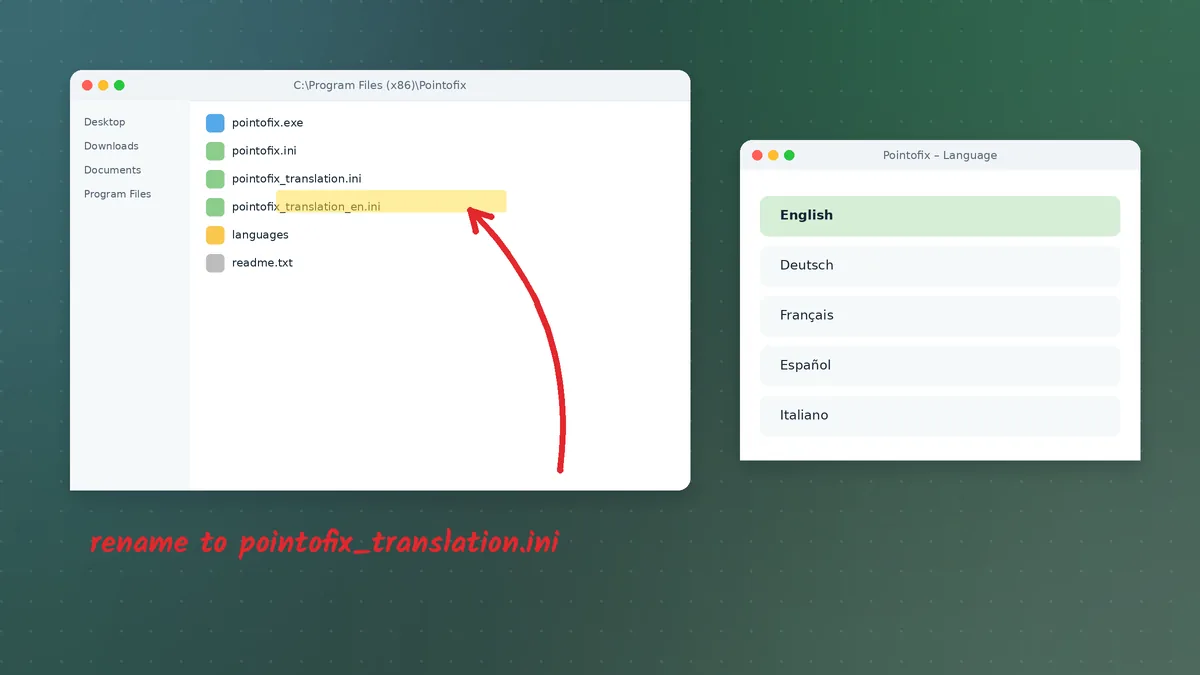
Pointofix began life as a German utility, and many people are surprised the first time they open it: the tray menu, the options dialog and the tooltips all appear in German. The good news is that running Pointofix in English does not require a different program or a special build. The interface text is stored in a separate translation file, and swapping that file is a two-minute job once you know where it goes. This guide covers that job in detail, explains why the method works the way it does, and solves the handful of problems that stop the change from taking effect.
Why the Program Starts in German
Pointofix reads its interface labels from a plain-text file called pointofix_translation.ini in its own installation folder. When that file is missing, the program falls back to the German text compiled into it. The language pack that comes with the download contains one translation file per language — English, French and others — each named with a short language code, such as pointofix_translation_en.ini.
So the whole procedure boils down to this: put the right translation file into the right folder under the right name, then restart the program. Everything else in this guide is detail around those three conditions.
Before You Start
You need three things:
- Pointofix installed. If you have not installed it yet, follow the Pointofix download guide first, then come back here.
- The extracted language pack. It is part of the download archive. If you only kept the setup file and deleted the rest, download the archive again and extract it fully.
- Administrator rights on the PC. The default installation folder is inside Program Files, which Windows protects. You will see a permission prompt when copying the file there.
Step 1: Show File Name Extensions
This small step prevents the most common failure. By default, File Explorer hides extensions such as .ini and .txt. That makes it easy to end up with a file called pointofix_translation.ini.txt while Explorer only shows pointofix_translation.ini.
- Windows 11: open File Explorer, choose View → Show → File name extensions.
- Windows 10: open File Explorer, select the View tab and tick File name extensions.
- Windows 7: press Alt to show the menu bar, choose Tools → Folder options → View, and untick Hide extensions for known file types.
Step 2: Find the English Translation File
Open the folder where you extracted the download. Inside the language pack you will find several .ini files. The English one is named pointofix_translation_en.ini. Open it with Notepad if you are curious: you will see readable lines pairing internal keys with English labels such as menu entries and tool names. Do not edit anything for now; just close Notepad.
Step 3: Locate the Installation Folder
The quickest route is the Start menu. Type Pointofix, right-click the result and choose Open file location. That opens the shortcut folder; right-click the shortcut there and choose Open file location once more to reach the real program folder. On 64-bit Windows the default is:
C:\Program Files (x86)\Pointofix
On 32-bit Windows it is C:\Program Files\Pointofix. If you installed somewhere else, the shortcut trick will still lead you to the right place.
Step 4: Copy and Rename
- Copy
pointofix_translation_en.inifrom the language pack. - Paste it into the installation folder. Approve the administrator prompt.
- Right-click the pasted file, choose Rename, and change the name to exactly:
pointofix_translation.ini
If a file with that name already exists — for example, from a previous attempt with another language — replace it.
Step 5: Restart Pointofix Properly
Closing the drawing palette is not enough; the program keeps running in the notification area. Right-click the Pointofix tray icon and choose the exit entry (in German it reads Beenden). Then start Pointofix again from the Start menu. Right-click the tray icon: the menu should now be in English.
If the Menus Are Still in German
Work through these checks in order.
The name is not exactly right. Look for typos, a leftover _en, a space, or a double extension. Because you enabled file name extensions in Step 1, the true name is now visible.
The file landed in the wrong folder. It must sit next to pointofix.exe, not in a subfolder and not in the language pack folder.
Windows redirected the file. On some systems, if you copied without administrator approval, Windows silently stores the file in a "VirtualStore" folder inside your user profile instead of Program Files. The program may then behave differently for different users. Delete any copy in %LOCALAPPDATA%\VirtualStore\Program Files (x86)\Pointofix and copy the file again, approving the prompt this time.
An old instance is still running. Open Task Manager, look for Pointofix under Processes, end it, and start the program again.
The file is damaged. If you edited the translation file and saved it with a different encoding, some characters may break the parser. Extract a fresh copy from the archive.
Making the Change for Every User on a Shared PC
Because the translation file sits in the program folder, it applies to everyone who uses Pointofix on that computer. That is convenient for classrooms and training rooms: one change, and every student account sees English menus. If different people need different languages on the same machine, the simplest solution is to keep copies of the program in separate folders, each with its own translation file — but in practice most teams standardise on one language per room.
Deploying English Pointofix Across Many Computers
IT administrators rarely want to rename files by hand on thirty laptops. A short script does the same job. Run it from an elevated PowerShell prompt in the folder that contains the language pack:
Copy-Item .\pointofix_translation_en.ini "C:\Program Files (x86)\Pointofix\pointofix_translation.ini" -Force
This line can be added to whatever deployment tool you already use, right after the silent installation of the program itself. Test it on one machine before rolling it out.
Customising the English Labels
Since the translation file is plain text, you can adjust labels to suit your audience. A primary school teacher might shorten tool names; a training department might align terminology with its own handouts. A few rules keep this safe:
- Edit a copy, never the only copy. Keep the original from the language pack untouched.
- Change only the text on the right-hand side of each line. The keys on the left are what the program looks up; altering them breaks the label.
- Keep the same encoding that the file already uses when you save it in Notepad.
- Restart the program after every edit to see the result.
If you produce a cleaner wording that others might find useful, the language pack's readme explains that new and improved translations are welcome, with the English file serving as the template for other languages.
What Changes and What Stays the Same
Switching to English changes every label you see: the tray menu, the options dialog, button tooltips and the palette's hover text. It does not change your settings, hotkeys, colours or the position of the palette. It also does not affect behaviour — the pen, highlighter, shapes, text tool, freeze and zoom modes work identically in every language.
A Quick Tour of the English Interface
Once the menus are in English, it is worth spending five minutes getting to know them:
- Tray menu. Holds the command to start drawing, the options, an about box and the exit command.
- Options. Contains hotkey assignment, startup behaviour, default colours and widths, and transparency settings for the highlighter.
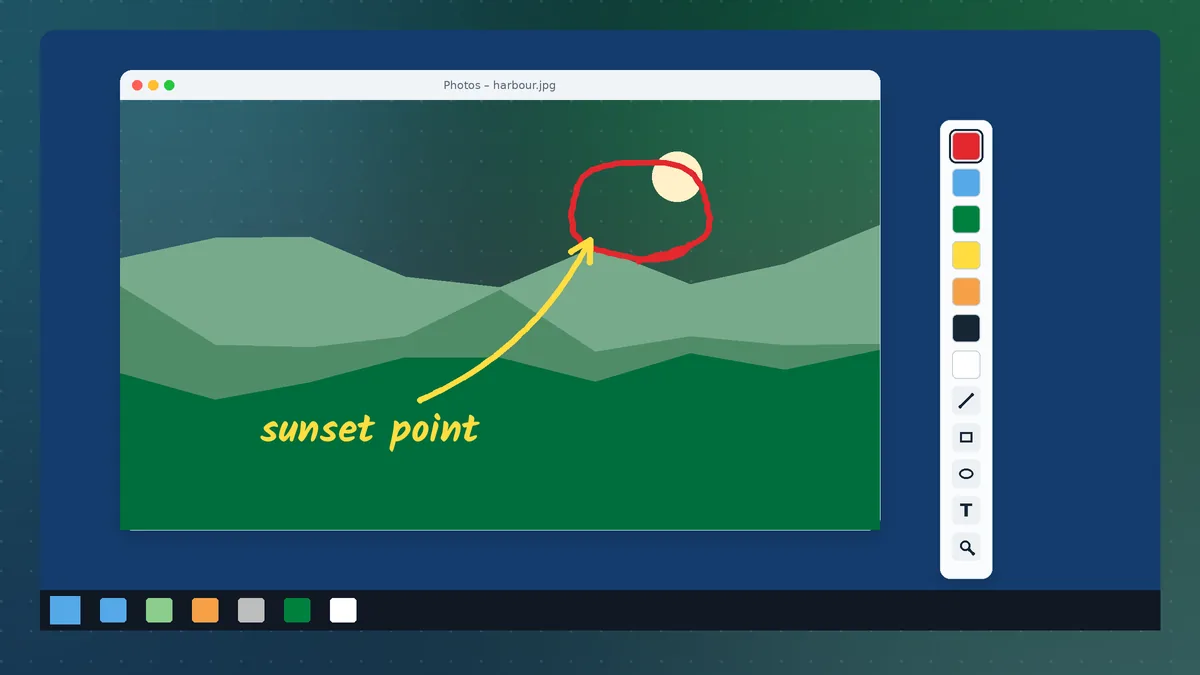
- Drawing palette. Appears when drawing mode is active. It offers colour swatches, the freehand pen, the highlighter, straight lines, rectangles, ellipses, a text tool, an eraser or clear command, and the zoom function.
- Save and print. Let you keep a copy of a marked-up screen — useful for sending a summary after a call.
Practising with the English labels is also a good moment to settle on a personal "standard kit": for example, red pen for pointing, yellow highlighter for emphasis, and blue rectangles for grouping. Consistent colours help your audience read your annotations faster.
Other Languages Work the Same Way
Everything above applies to the other translations in the pack. Use the French file for a French interface, and so on. If you are switching between languages regularly, keep the renamed copies in a small folder of their own, for example pointofix_translation_en.ini and pointofix_translation_fr.ini, and copy the one you need over pointofix_translation.ini before a session. French speakers will find a dedicated walkthrough in the Pointofix en français guide.
Keeping the English Interface After Updates
When you install a newer Pointofix package over an existing one, the setup may replace files in the program folder. After any update, open the folder and confirm that pointofix_translation.ini is still present and still contains English text. Keeping a backup copy of your renamed file in your Documents folder makes restoring it a five-second task.
Summary
Running Pointofix in English is a matter of one file in one folder with one exact name:
- Show file name extensions.
- Copy
pointofix_translation_en.inifrom the language pack. - Paste it next to
pointofix.exe. - Rename it to
pointofix_translation.ini. - Exit the program from the tray and start it again.
Once that is done, the program behaves exactly as it did before — just in a language your whole room can read. From there, the teachers and trainers guide shows how to put the tools to work in a real session.