 10 min read
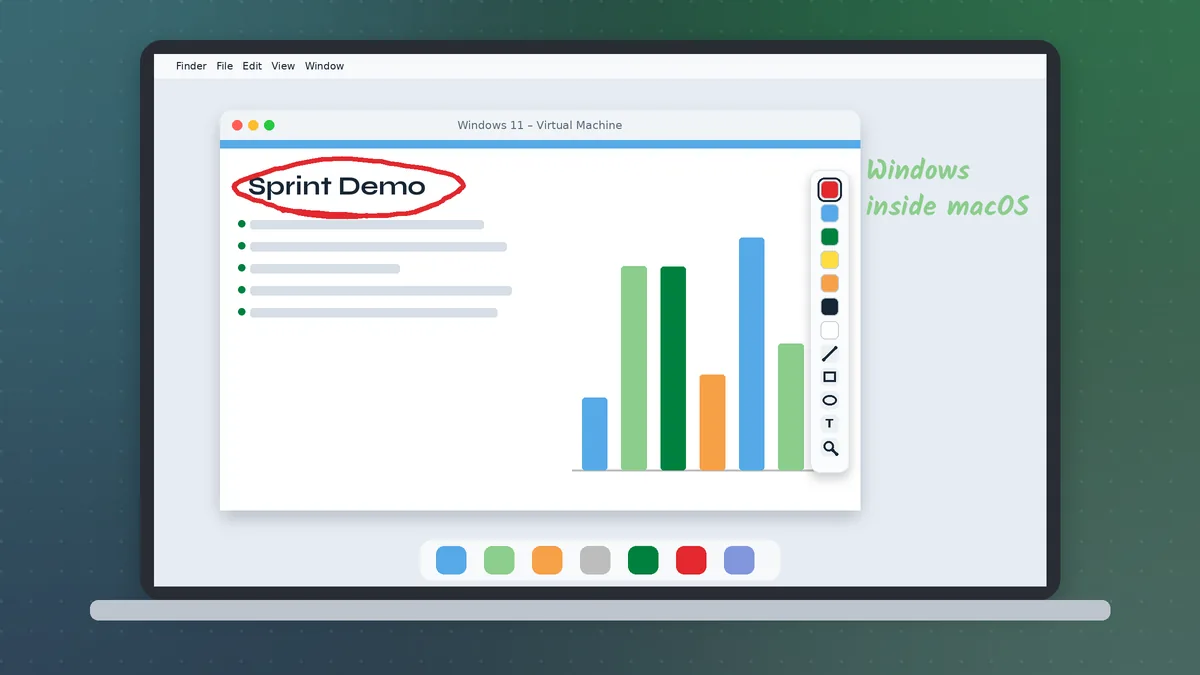
Windows 11 changed a lot on the surface — a centred taskbar, rounded corners, a new Settings app, Snap Layouts and tighter security defaults — but underneath it still runs classic desktop software very well. Pointofix on Windows 11 works the way it always has: a tray icon, a hotkey, a drawing palette and a clean slate when you are done. What has changed is the path to get there. Several menus have moved, a new security layer called Smart App Control can intervene, and modern high-resolution laptop screens make DPI settings more important than ever. This guide walks through each of those points.
Compatibility at a Glance
Pointofix is a 32-bit Windows desktop program. Windows 11 is 64-bit only, but it runs 32-bit applications through the built-in WoW64 layer without any extra steps. That means:
- No compatibility mode is required for normal use.
- The program installs into
C:\Program Files (x86)\Pointofixby default. - Home, Pro, Education and Enterprise editions all behave identically.
- Windows 11 on ARM devices can run x86 desktop applications through emulation; test on your specific device before relying on it in front of an audience.
Installing on Windows 11
- Download the archive from the homepage button.
- Open File Explorer → Downloads.
- Right-click the archive, choose Show more options → Scan with Microsoft Defender.
- Right-click again and choose Extract All.
- Run the setup program from the extracted folder and approve the User Account Control prompt.
- Complete the wizard.
About Smart App Control
On freshly installed Windows 11 systems, Smart App Control may be switched on. It is stricter than SmartScreen: instead of showing a warning you can click past, it can block apps that are unsigned and not yet known to Microsoft's reputation service. If the setup is blocked with a Smart App Control message, you have three honest options:
- Ask whoever manages the device to approve the program.
- Turn Smart App Control off in Windows Security → App & browser control → Smart App Control settings. Be aware that on many Windows 11 builds, once it is turned off it cannot be switched back on without resetting Windows, so check the wording on your own system and think carefully before choosing this on a personal machine.
- Use a different computer for presentation work where the policy allows desktop utilities.
Most upgraded systems — PCs that moved from Windows 10 to 11 — have Smart App Control off by default and will show the familiar SmartScreen panel instead. There, More info → Run anyway is the route, provided the file passed your scan.
Setting the Interface Language
The program starts in German unless you add a translation file. Copy the English or French file from the language pack into the installation folder and rename it to pointofix_translation.ini. In Windows 11's File Explorer, turn on extensions first with View → Show → File name extensions so you can see the real file name. The English guide covers every detail of this step.
Pinning the Tray Icon on the New Taskbar
Windows 11 hides notification-area icons more aggressively than earlier versions.
- Right-click an empty part of the taskbar and choose Taskbar settings.
- Expand Other system tray icons.
- Switch Pointofix to On.
The icon now stays visible next to the clock. You can also drag it out of the overflow flyout. If you prefer the classic left-aligned layout, Taskbar behaviors → Taskbar alignment → Left brings the Start button back to the corner, which some presenters find faster to reach.
The Essential High DPI Fix
Almost every Windows 11 laptop ships with display scaling above 100 percent — 150 percent is common on 14-inch screens, and 200 percent or more on high-resolution panels. Older programs can respond to scaling in two unwanted ways: blurry ink, or ink that lands slightly away from the pointer.
To fix it:
- Open the installation folder and right-click
pointofix.exe. - Choose Properties → Compatibility → Change high DPI settings.
- Under High DPI scaling override, tick Override high DPI scaling behavior and select Application.
- Apply, close and restart Pointofix.
Test drawing a small circle around a single icon. If the circle lands exactly where you drew it, you are done. If the palette becomes uncomfortably small, try System (Enhanced) instead and compare.
Pointofix and Snap Layouts
Snap Layouts make it easy to place a slide deck on one half of the screen and a browser on the other. Pointofix works over any arrangement because it draws over the whole screen, not inside a single window. A useful pattern for teaching is to snap the source material to the left and a blank whiteboard or notes window to the right, then use Pointofix arrows to connect points across both.
Remember to clear your drawing before rearranging windows. In the standard drawing mode the screen is frozen while you annotate, so moving windows only makes sense after you exit drawing mode.
Touch Screens and Pens
Many Windows 11 devices are 2-in-1 laptops or tablets with touch support and active pens. Pointofix was designed around the mouse, so behaviour with touch and pen input depends on how the device translates those inputs into mouse events. In practice:
- An active pen usually works like a mouse with a very precise pointer, which suits handwriting and small circles.
- Finger input may work for broad strokes but is less precise.
- Windows Ink features — such as the pen menu or palm rejection — are separate from Pointofix and can interfere if they claim the same pen button.
Test with your own hardware before an important session. If touch behaviour is unpredictable, keep a small wireless mouse in your bag; it is the most reliable input for live annotation.
Using Pointofix in Teams, Zoom and Other Video Calls
During a call, Pointofix drawings appear in your screen share like anything else on the display. A few Windows 11–specific tips:
- Share the entire screen, not a single window. Pointofix draws on its own overlay; a window-only share may not include it.
- Turn on Do Not Disturb in the notification centre so pop-ups do not appear over your marks.
- Pick a hotkey that the meeting app does not use. Meeting software often reserves Ctrl + Shift combinations for mute and camera toggles. Check its shortcut list first.
- Use thicker strokes than you think you need. Video compression softens thin lines for remote viewers.
The Zoom and Live Zoom Modes
Windows 11's crisp, dense displays make small text even smaller for an audience. Pointofix's zoom function enlarges part of the screen; live zoom follows the cursor, which works well for walking through a settings page. Use one magnification approach consistently — switching between Pointofix zoom and Windows Magnifier during a single demonstration is confusing to watch.
Saving What You Drew
Pointofix can save the annotated screen as an image file. On Windows 11, a sensible place is a dedicated folder inside Pictures, for example Pictures\Pointofix. If OneDrive folder backup is active on the device, that folder will sync automatically, which is handy for sending post-meeting summaries. If it should not sync — for instance on a shared classroom laptop — save to a local folder outside the OneDrive scope.
The built-in Snipping Tool (Win + Shift + S) also captures the screen, including any visible Pointofix drawing, if you prefer to crop a region instead of saving the full screen.
Troubleshooting on Windows 11
The installer is blocked without a "Run anyway" option. That is Smart App Control, not SmartScreen. See the section above.
The hotkey stops working after an update. Windows 11 updates occasionally change startup apps. Check Settings → Apps → Startup and confirm Pointofix is enabled, or start it manually and test again.
Ink is offset or blurry. Apply the high DPI override described above.
The palette opens on the wrong display. Disconnect and reconnect the external screen, or change the main display in Settings → System → Display → Make this my main display, then restart Pointofix.
Drawing does not appear over an elevated app. If the app you are annotating runs as administrator, Pointofix may need the same level. Start it with Run as administrator for that session.
The tray icon vanishes. Re-enable it under Taskbar settings → Other system tray icons.
Upgrading from Windows 10 to Windows 11
If Pointofix was installed on Windows 10, the in-place upgrade to Windows 11 normally keeps the program, its settings and the translation file. After the upgrade, check three things: the tray icon visibility setting, the startup entry, and the DPI override. All three are sometimes reset by the upgrade process. The Windows 10 guide is still useful as a reference for settings that look the same on both systems.
A Windows 11 Presentation Checklist
- Tray icon pinned and visible.
- Interface language set.
- High DPI override applied and tested.
- Hotkey checked against your meeting and slide software.
- Do Not Disturb enabled for the session.
- Save folder chosen for annotated screenshots.
- A spare mouse ready if you rely on touch.
With those points covered, Pointofix on Windows 11 is as dependable as it has always been — quick to call up, simple to use and invisible until you need it.## Shared and Kiosk-Style Windows 11 Devices
Classroom laptops and meeting-room PCs running Windows 11 are often shared. Because Pointofix stores options per user while the translation file applies to the whole installation, decide which settings belong to everyone (language, startup) and which each presenter may change (colours, widths). Exiting the program from the tray at the end of a session leaves the device clean for the next person.