 9 min read
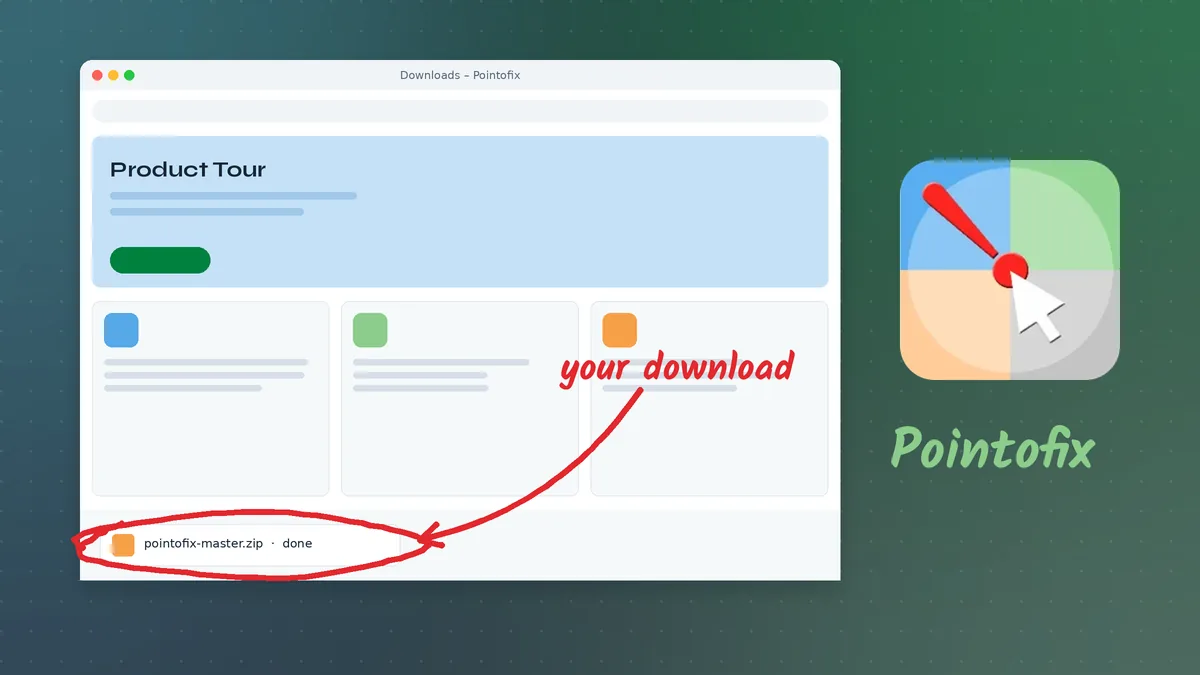
Most people search for a Pointofix download five minutes before a lesson, a webinar or a support call starts. That is exactly the wrong moment to discover that the file you grabbed is a repackaged installer full of toolbars, or that the program opens in German when you expected English. This guide slows the process down just enough to get it right the first time. It explains what the package contains, how to check it, how to install it on any modern version of Windows, and how to confirm that the drawing tools are working before you stand in front of an audience.
What You Are Actually Downloading
Pointofix is a small freeware utility for Windows that turns whatever is on your screen into a temporary drawing surface. You press a hotkey or click the tray icon, the current screen content is held in place, and you can mark it up with a pen, a highlighter, lines, rectangles, ellipses and text. When you are finished, you clear the marks and carry on working. There is no cloud account, no subscription and no sign-in screen.
Because the tool is small, the download is small as well. A typical package contains:
- The setup program that copies Pointofix into your Program Files folder and creates a Start menu entry.
- The language pack, a set of plain-text translation files. The program was originally written in German, and the English, French and other interface languages are supplied as
.inifiles. - A readme, which explains the language pack and lists the version number.
Knowing this list in advance is useful. If the file you downloaded is many times larger than a few megabytes, asks for administrator access to install "offers", or arrives as a disk image instead of an installer or archive, stop and get the package again from the download button on this site.
Step 1: Download the Archive
Use the Download Pointofix button on the homepage. It links to a compressed .zip archive. Your browser will usually save it to the Downloads folder.
A few practical notes:
- Edge and Chrome may show a "not commonly downloaded" warning. Small freeware tools that are not downloaded millions of times a day often trigger this reputation check. It is not by itself a sign of malware. Choose Keep only after you have confirmed the source is the link on this site.
- Do not run anything straight from the browser's download bar. Open the folder instead, so you can see the file name and size before extracting.
- School and company laptops may block downloads of executable content entirely. In that case, ask your IT department to deploy the package for you; the rest of this guide still applies to them.
Step 2: Check the File Before You Open It
Thirty seconds of checking saves a lot of trouble later.
Scan it. Right-click the archive and choose Scan with Microsoft Defender (on Windows 11 this sits under Show more options). Defender will report "No current threats" if the file is clean. If you use another antivirus product, its context-menu scan works the same way.
Look at the size and name. The archive should be modest in size and clearly named. A file called something like pointofix_crack_full.exe is not the freeware tool; Pointofix has no paid edition and needs no crack.
Optional: compare a hash. If you manage several computers and want to make sure each one receives an identical file, open PowerShell in the Downloads folder and run:
Get-FileHash .\your-file-name.zip -Algorithm SHA256
Write the result down once and compare it on every other machine. Matching hashes mean the files are byte-for-byte identical.
Step 3: Extract the Archive
Right-click the .zip file and choose Extract All, then pick a folder you can find again, such as Downloads\Pointofix. Avoid double-clicking into the zip and running the setup from inside it: Windows extracts files to a temporary location in that case, and the setup may not find the language files that sit beside it.
After extraction you should see the setup program, the language pack folder or files, and the readme. Leave this folder in place until you have finished the language step further down.
Step 4: Run the Setup
Double-click the setup program. Windows will display a User Account Control prompt because the installer writes to Program Files. Confirm it.
The setup wizard is short:
- Choose the installation language for the wizard itself.
- Accept or change the destination folder. On 64-bit Windows the default is usually
C:\Program Files (x86)\Pointofix, because Pointofix is a 32-bit program. That is normal and does not affect performance. - Decide whether you want a desktop shortcut.
- Click Install, then Finish.
If SmartScreen shows a blue "Windows protected your PC" panel, click More info and then Run anyway — but only if you have scanned the file and it came from this site's download link. SmartScreen reacts to unsigned or rarely downloaded executables, which describes a lot of freeware.
Step 5: Switch the Interface to Your Language
Out of the box, the program speaks German. To change that:
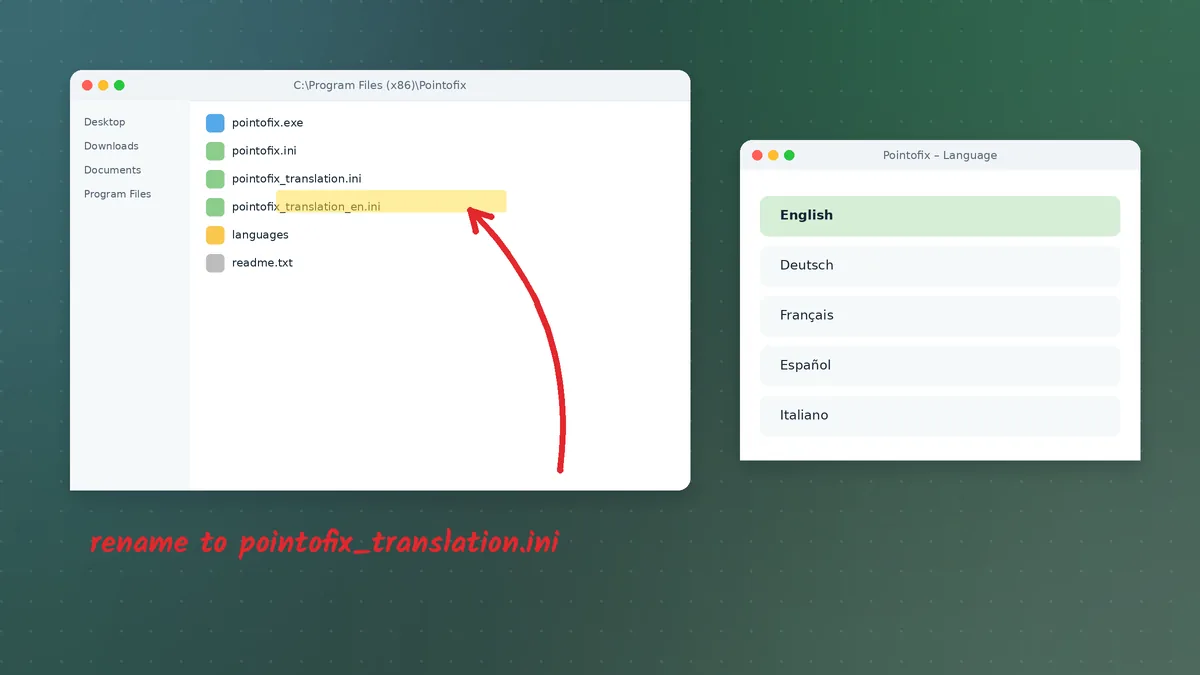
- Open the folder where you extracted the download and find the translation file for your language, for example
pointofix_translation_en.inifor English or the French file for French. - Copy it into the Pointofix installation folder (
C:\Program Files (x86)\Pointofixby default). - Rename the copy to exactly
pointofix_translation.ini. - Close Pointofix completely — right-click its tray icon and choose the exit command — and start it again.
Windows will ask for administrator permission when you paste into Program Files; that is expected. If the menus are still in German after a restart, the most common cause is a hidden file extension: the file has really been saved as pointofix_translation.ini.txt. Turn on File name extensions in File Explorer's View menu and fix the name. The dedicated Pointofix English guide goes deeper into this step.
Step 6: Your First Annotation
Start Pointofix from the Start menu. Nothing dramatic happens: the program places an icon in the notification area at the bottom right of the taskbar. If you cannot see it, click the small arrow that reveals hidden icons and drag the Pointofix icon onto the visible part of the taskbar so it is always one click away.
Now try the basic loop:
- Activate drawing mode by clicking the tray icon or pressing the hotkey configured in the options.
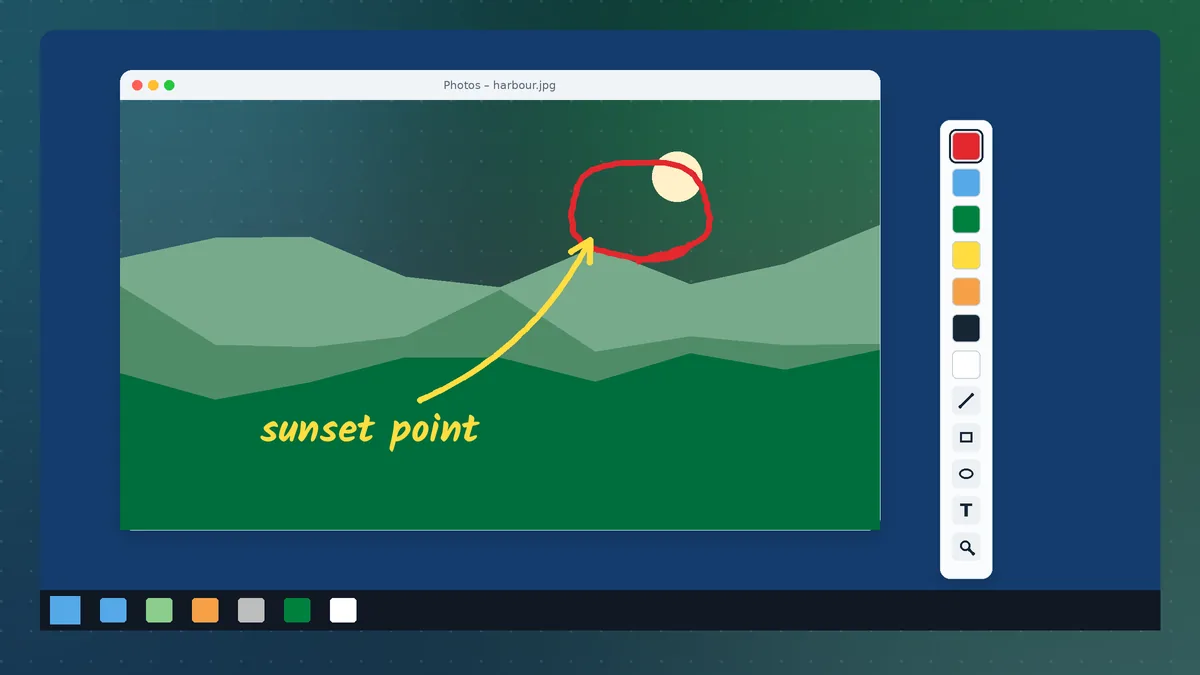
- Pick a colour and a tool from the floating palette. Start with the pen in red.
- Draw a circle around something on the screen.
- Switch to the highlighter and drag across a line of text. Notice that the text stays readable under the transparent colour.
- Clear the drawing and leave drawing mode to return to normal work.
Do this a few times before you rely on it in a live session. Muscle memory for the hotkey is what makes screen annotation feel natural instead of clumsy.
Configuring the Settings That Matter
Open the options dialog from the tray menu. A handful of settings make a big difference:
- Hotkey. Pick a combination that does not clash with your presentation software, your screen recorder or your video-call app. Combinations using Ctrl + Shift plus a letter are usually safe.
- Start with Windows. Turn this on if you teach or present every day; turn it off on a personal laptop where you rarely need it.
- Default colour and line width. Thin red lines look fine on a laptop screen but disappear on a projector. A thicker stroke is easier for a room to follow.
- Transparency of the highlighter. A mid-range value keeps the underlying text readable.
Keeping Pointofix Updated
Pointofix is a mature program; it does not update itself and does not phone home. That is part of its appeal in schools and offices. When a new package appears, download it the same way, close the running copy, run the new setup over the old one and copy your translation file back if the installer replaced it. Your settings normally survive this process.
Removing Pointofix
If you no longer need the tool, open Settings → Apps → Installed apps on Windows 11 (or Apps & features on Windows 10, Programs and Features on Windows 7), find Pointofix and choose Uninstall. Then delete the extracted download folder. Nothing else is left behind except, on some systems, a small settings file in your user profile, which you can remove manually if you want a completely clean slate.
Common Download Problems and Fixes
The browser deletes the file automatically. Some security settings remove executable downloads silently. Check the browser's download list; if the file is marked as blocked, you can usually choose Keep from its menu. On managed devices you will need IT approval.
"Windows cannot complete the extraction." The download was interrupted. Delete the partial file and download it again over a stable connection.
The installer will not start. Make sure you extracted the archive first. If it still refuses, right-click the setup program, choose Properties, and if there is an Unblock checkbox at the bottom of the General tab, tick it and apply.
The program starts but nothing is visible. That is the tray behaviour described above. Look in the hidden icons area.
Drawing appears offset from the cursor. This happens on high-resolution laptop screens with display scaling above 100 percent. Right-click pointofix.exe, open Properties → Compatibility → Change high DPI settings, and enable the override for Application. Restart the program. The Windows 11 guide explains this fix with more detail.
A Short Checklist Before Your Next Session
- The archive came from the download button on this site and passed a scan.
- Pointofix is installed and its tray icon is visible.
- The interface shows your language.
- You have practised the hotkey at least five times.
- Pen width is thick enough for the screen or projector you will use.
- You know how to clear the drawing in one action.
That is all it takes. Once the tool is set up properly, it disappears into the background until you need it — which is exactly what a good presentation utility should do. If you are installing on a specific edition of Windows, continue with the Windows 10, Windows 11 or Windows 7 guides for edition-specific details.