 10 min read
"Is there a Pointofix for Mac?" is one of the most frequent questions about the program, and it often arrives in a different spelling — "point to fix mac" — from people who heard the name in a training session and want the same experience on a MacBook. The honest answer is short: Pointofix is built for Windows, and there is no native macOS version. The useful answer is longer, because Mac users still have several workable routes, each with clear trade-offs. This guide explains them so you can choose the one that fits your hardware, your budget and the way you present.
Why There Is No Native Mac Version
Pointofix is a classic Windows desktop application. It relies on Windows-specific mechanisms for capturing the screen, drawing a full-screen overlay, registering global hotkeys and placing an icon in the notification area. None of those calls exist on macOS in the same form. Porting the program would mean rewriting most of it, and no macOS edition has been published.
That leaves three realistic paths:
- Run Windows on the Mac in a virtual machine, then run Pointofix inside it.
- Use a compatibility layer that runs Windows programs on macOS without a full Windows installation.
- Use a native macOS screen annotation tool that provides similar features.
Option 1: A Windows Virtual Machine
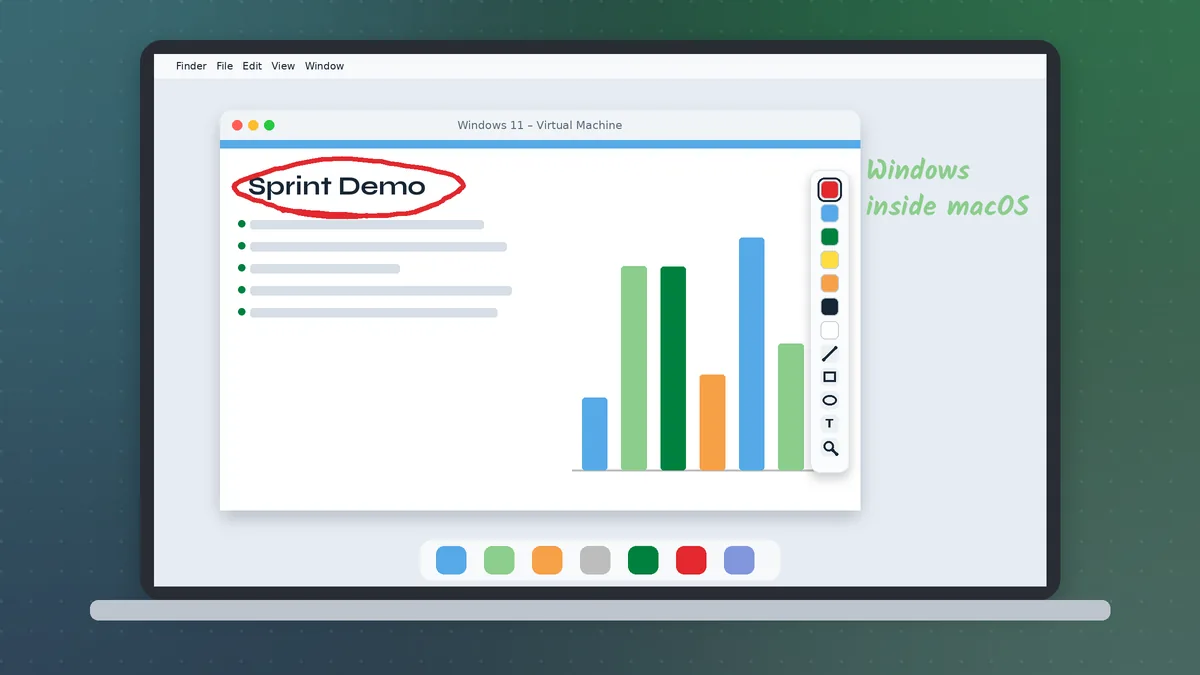
A virtual machine (VM) is a complete Windows installation running inside a window on your Mac. Pointofix behaves exactly as it does on a PC — inside that window.
On Apple silicon Macs (M-series chips), the VM runs the ARM edition of Windows 11, which can run x86 Windows programs through Microsoft's built-in emulation. Pointofix is small and light, so emulation overhead is rarely noticeable for drawing, but you should test before relying on it live.
On older Intel-based Macs, virtualization software runs standard x86 Windows directly.
Popular virtualization products for macOS include commercial options such as Parallels Desktop and VMware Fusion, and the free, open-source UTM. Each needs a valid Windows licence for anything beyond evaluation use.
What works well:
- Annotating anything that also runs inside the VM: Windows-only software you are teaching, a browser inside Windows, a PowerPoint deck opened in the Windows edition.
- Training sessions where the subject is Windows software. Here a VM is often the right choice anyway.
What does not work:
- Drawing over native macOS apps. Pointofix only sees the Windows desktop inside the VM, not the macOS desktop around it. Some virtualization products offer a "coherence" or "seamless" mode that blends Windows windows into the Mac desktop, but annotation over Mac apps still is not possible this way.
Tips for VM users:
- Give the VM a fixed full-screen resolution before presenting, so drawings line up predictably.
- Map the drawing hotkey to a combination that the Mac does not intercept. macOS reserves many Command-key combinations, and the VM may pass Ctrl differently depending on settings.
- Apply the same high DPI fix as on a Windows laptop if ink appears offset — Retina displays use heavy scaling. The Windows 11 guide covers the steps.
Option 2: Wine-Based Compatibility Layers
Wine is an open-source compatibility layer that translates Windows calls into macOS equivalents. Commercial packages such as CrossOver build on it with a friendlier interface, and community tools offer free front ends.
The appeal: no Windows licence, no full VM, lower memory use.
The reality for Pointofix: screen annotation tools depend on precisely the parts of Windows that are hardest to translate — full-screen transparent overlays, screen capture and global hotkeys. Results can range from "mostly works" to "starts but cannot draw". Behaviour may also change from one macOS release to the next. If you want to experiment, treat it as a hobby project and never rely on it for a live class without a fallback.
If you try anyway:
- Install the German program in the Wine environment, then copy the translation file into its program folder and rename it to
pointofix_translation.ini, exactly as on Windows (see the English guide). - Grant the Wine application Screen Recording and Accessibility permissions in System Settings → Privacy & Security. macOS blocks screen capture and global input monitoring without them.
- Test the hotkey, the pen, the highlighter and clearing in full-screen mode before every session.
Option 3: Native macOS Annotation Tools
For most Mac users who simply want to draw on the screen during a lesson or a call, a native macOS app is the most dependable choice. Several are available, ranging from free open-source projects to small paid utilities. When comparing them, look for the Pointofix features you actually use:
- Global hotkey to start and stop drawing instantly.
- Pen, highlighter, shapes, arrows and text.
- Freeze or "draw over a still frame" mode so marks stay aligned while content changes behind them.
- Zoom or magnifier for small details.
- Quick clear in one keystroke.
- Works over full-screen apps and over screen sharing in your meeting tool.
- Apple silicon support and compatibility with the current macOS release.
macOS also includes a few built-in helpers worth knowing:
- Markup in Preview and in screenshots (Shift + Command + 5, then click the thumbnail) lets you annotate a captured image — ideal for after-the-fact explanations, though not live drawing.
- Zoom under Accessibility enlarges the screen around the pointer, a useful substitute for Pointofix's zoom function.
- Presenter overlays in some video-call apps let you draw on a shared screen for participants.
Which Option Should You Choose?
| Situation | Recommended route |
|---|---|
| You teach Windows software from a Mac | Windows VM with Pointofix inside it |
| You need to draw over macOS apps live | A native macOS annotation tool |
| You want to experiment at no cost | Wine-based layer, with a fallback ready |
| Your school standardises on Pointofix | VM on the presentation Mac, or a Windows PC in the room |
| You only annotate screenshots afterwards | macOS Markup is enough |
Keeping a Consistent Workflow Across Mac and Windows
Many trainers move between a Windows PC at work and a Mac at home or on the road. You can keep your habits consistent even if the tool differs:
- Use the same colour code everywhere — for example red for problems, green for solutions, yellow for emphasis, blue for connections.
- Mirror your hotkeys. If Pointofix uses Ctrl + Shift + a letter on Windows, configure the Mac tool to use Control + Shift + the same letter.
- Keep thick default strokes on both systems. Screen-shared ink must survive video compression.
- Practise the clear-then-continue habit so old drawings never sit on top of new content.
Privacy and Permissions on macOS
Whatever route you choose, macOS will ask for Screen Recording permission for any app that draws over or captures the screen, and often Accessibility permission for global hotkeys. Grant them only to software from sources you trust. A VM application needs these permissions for its own window; a native annotation tool needs them directly. You can review or revoke them at any time in System Settings → Privacy & Security.
Frequently Asked Mac Questions
Can I install the Pointofix download directly on my Mac? No. The setup program is a Windows executable. It will not open on macOS without a VM or a compatibility layer.
Will Pointofix run on an M-series Mac in a VM? Generally yes, through Windows on ARM and its x86 emulation. Because emulation can vary, test the exact setup before a live session.
Is "point to fix" a different program? No. It is a common spelling of Pointofix, usually typed by people who heard the name spoken aloud.
Does a Mac version exist under another name? Not as an official port. Native Mac tools offer similar functions but are separate products from different developers.
Is running Pointofix in a VM safe? The same rules apply as on a physical PC: download only from the official link, scan the file, and keep the VM's Windows installation updated.
Setting Up a Windows VM for Presenting: A Short Checklist
If you decide on the virtual machine route, a little preparation makes it feel almost native:
- Allocate enough memory. Four gigabytes for the Windows guest is a comfortable minimum for slides, a browser and Pointofix together.
- Install Pointofix inside Windows exactly as on a PC, then add the translation file for your language.
- Pin the tray icon in the Windows taskbar settings so it is visible even when the VM window is small.
- Switch the VM to full screen on the display the audience sees before you start presenting.
- Test the hotkey inside the VM with the Mac's keyboard; adjust the VM's keyboard mapping if Control and Command behave differently than you expect.
- Save annotated images to a shared folder that both Windows and macOS can access, so recaps are easy to send from the Mac afterwards.
Summary
Pointofix does not run natively on macOS, and "point to fix mac" searches will not turn up an official Mac edition. Mac users can still get the full Pointofix experience inside a Windows virtual machine, can experiment with Wine-based layers, or can switch to a native macOS annotation tool for drawing over Mac apps. Choose the route that matches where your content lives: Windows content in a VM, Mac content with a Mac tool. If you also present from Windows machines, the download guide and the teachers and trainers guide will help you get the most out of the original program.