 9 min read
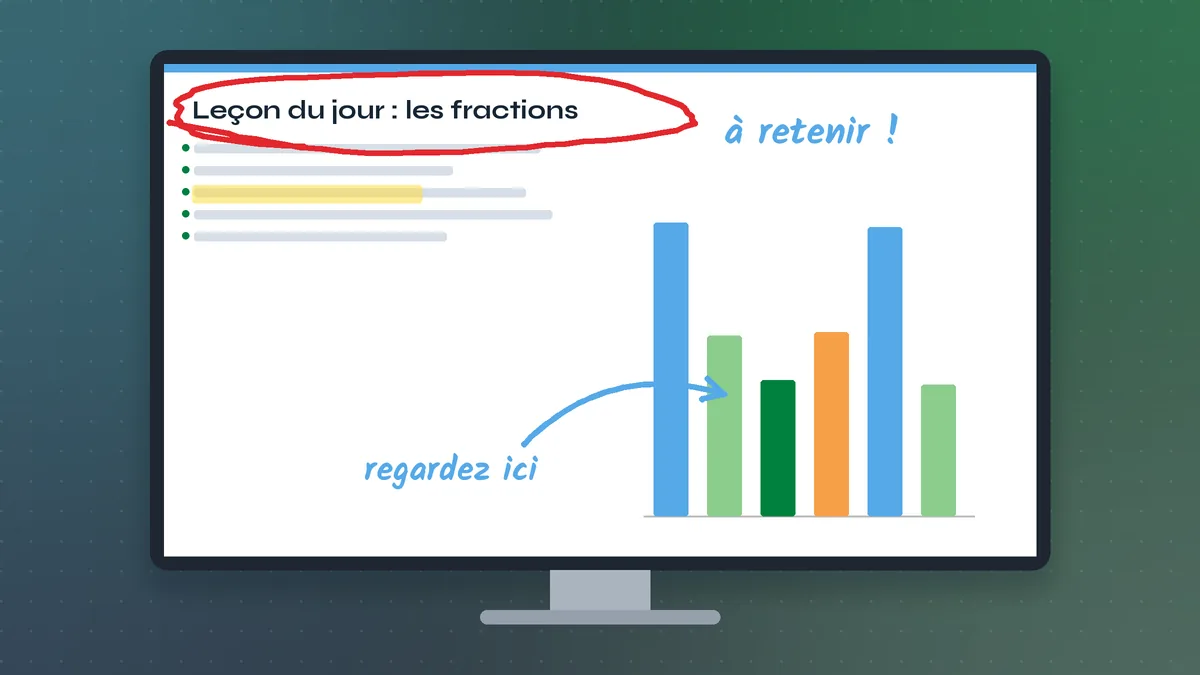
Pointofix is popular with teachers far beyond German-speaking countries, and francophone classrooms in France, Belgium, Switzerland, Québec and across West and North Africa are no exception. Searches for Pointofix en français usually come from one practical need: the program opened in German and the menus need to be readable by the teacher and by anyone who borrows the computer after them. This guide explains how to switch the interface to French, how the French labels map to the tools, and how to work comfortably in bilingual rooms where English and French are used side by side.
How the Language System Works
Pointofix keeps its interface text outside the program itself. When it starts, it looks for a file named pointofix_translation.ini in its installation folder. If the file exists, the menus, tooltips and options appear in that file's language. If it does not, the program uses its built-in German labels.
The download's language pack includes a French translation file. Activating French therefore means placing that file next to the program under the generic name the program expects. No reinstall is needed, and your settings are not affected.
Step-by-Step: Activating French
1. Show file extensions
In File Explorer, enable visible extensions so you can see whether a file really ends in .ini:
- Windows 11: Afficher → Afficher → Extensions de noms de fichiers.
- Windows 10: Affichage tab → tick Extensions de noms de fichiers.
(If your Windows itself is in English, the same options are View → Show → File name extensions.)
2. Find the French translation file
Open the folder where you extracted the download. In the language pack, look for the French translation file — its name follows the same pattern as the English one, with a French language code in place of en. If several French-looking files exist, check the readme to see which one is current.
3. Open the installation folder
Type Pointofix in the Start menu, right-click it and choose Ouvrir l'emplacement du fichier (Open file location). Repeat on the shortcut to reach the real folder, usually:
C:\Program Files (x86)\Pointofix
4. Copy and rename
Copy the French file into that folder and confirm the administrator prompt. Rename the copy to exactly:
pointofix_translation.ini
Replace any existing file with the same name.
5. Restart from the tray
Right-click the Pointofix tray icon and exit the program, then start it again. The tray menu and options will now be in French.
French Labels and What They Do
Translation files can vary slightly between versions, but the tools themselves are always the same. Here is how to think about them, whatever the exact French wording on your screen:
- Crayon / stylo (pen): freehand drawing for circles, ticks, underlines and quick sketches.
- Surligneur (highlighter): a broad transparent stroke that leaves text readable underneath — ideal for emphasising a sentence in a document.
- Ligne et flèche (line and arrow): straight connectors to link one element to another.
- Rectangle et ellipse: frames to group items or isolate an area of a diagram.
- Texte: typed labels when handwriting with a mouse would be hard to read.
- Gomme / effacer (eraser / clear): remove one mark or wipe the whole drawing.
- Loupe / zoom: enlarge part of the screen for small details.
- Enregistrer / imprimer (save / print): keep a copy of the annotated screen.
Teachers often prepare a small printed card with these labels and their keyboard shortcuts and tape it next to the classroom PC. It helps substitutes and students use the tool without hunting through menus.
Common Problems and Their Fixes
The menus are still in German. Nine times out of ten, the file name is wrong. With extensions visible, check for pointofix_translation.ini.txt or a leftover language code. The file must be in the same folder as pointofix.exe.
Accented characters look strange (é, è, à, ç). This points to an encoding problem, usually caused by opening and re-saving the file in an editor that changed its encoding. Copy a fresh, untouched file from the language pack.
The change worked for one user but not another. If the copy was made without administrator approval, Windows may have stored it in a per-user "VirtualStore" location. Remove that copy and repeat the copy step with the administrator prompt confirmed.
French in one room, English in another. That is fine: each installation reads its own file. Keep a copy of both translation files in a shared folder so you can switch quickly.
Using Pointofix in a Bilingual Classroom
In many schools and companies, lessons move between French and English. A few habits make annotation clearer for everyone:
- Choose the interface language for the person operating the computer, not for the audience. The audience sees your drawings, not your menus.
- Use colour as a language-neutral code. For example: red for errors or warnings, green for correct answers, yellow for vocabulary to remember, blue for links between ideas. Explain the code once at the start of term and keep it consistent.
- Prefer the text tool for key words. Typed labels in both languages — "à retenir / key point" — are easier to read from the back of the room than mouse handwriting.
- Save the annotated screen at the end of a lesson and share it as a recap in both languages.
Pointofix and AZERTY Keyboards
French and Belgian keyboards use the AZERTY layout, and Swiss French keyboards use QWERTZ. This matters for hotkeys: a combination that is comfortable on QWERTY may require an awkward stretch on AZERTY, and some punctuation keys move entirely. When you set the drawing hotkey in the options, choose letters rather than symbols — letters exist on every layout — and test the combination on the actual classroom keyboard. Ctrl + Shift with a letter on the left side of the keyboard tends to be comfortable on all three layouts.
Ideas for French-Language Lessons
- Grammar: project a paragraph and highlight verbs in one colour, subjects in another; circle agreement errors in red.
- Dictée corrections: project an anonymised student text and correct it live, explaining each mark.
- Mathematics: annotate a geometry figure — mark equal angles, draw the height of a triangle, label sides — without needing a separate drawing program.
- Geography: zoom into a map and trace rivers, borders or routes.
- Sciences: circle parts of a diagram and connect them to their names with arrows.
Because Pointofix draws over any application, the same skills work whether the material lives in a PDF, a web page, a slide deck or a spreadsheet.
Deploying the French Interface on Several PCs
For an IT technician preparing a computer room, a one-line PowerShell command placed after the silent install copies the French file into place. Run it from an elevated prompt in the language pack folder, replacing the source name with the exact French file name in your pack:
Copy-Item .\french-translation-file.ini "C:\Program Files (x86)\Pointofix\pointofix_translation.ini" -Force
Test it on one machine first. Because the file sits in the program folder, every account on the computer will see French menus.
Improving the Translation
Since the translation file is plain text, a teacher or team can adjust wording — for example to match the vocabulary used in school textbooks. Work on a copy, change only the text after each key, keep the original encoding when saving, and restart the program to see the result. The language pack's readme notes that improved translations are welcome, using the English file as the reference template.
A Sample Lesson Flow in French
Here is how a typical forty-minute French lesson might use Pointofix from start to finish, so you can picture where each tool fits:
- Warm-up (5 minutes). Project yesterday's saved annotation as a recap. Ask students what each colour meant before you say anything.
- New material (15 minutes). Open a short text in a PDF reader. Freeze the screen, highlight the new vocabulary in yellow, and type the English or local-language equivalent beside each word with the text tool for multilingual groups.
- Guided practice (10 minutes). Project an exercise. As students answer aloud, tick correct answers in green and circle mistakes in red, then explain the rule behind each red circle.
- Error hunt (5 minutes). Show a sentence with three hidden mistakes. Let a volunteer take the mouse and circle them — students enjoy being trusted with the tool.
- Wrap-up (5 minutes). Save the final annotated screen to the class folder and clear everything before the next group arrives.
The structure is not special to French, but it shows how a small set of tools — highlighter, pen, text, save and clear — covers an entire lesson without switching programs.
Keeping Shared Classroom PCs Tidy
When several teachers share one projector computer, small conflicts appear: one person changes the hotkey, another sets the pen to a thin yellow line, and the next teacher is confused. Agree on a short list of shared defaults — interface language, hotkey, default colour and width — and write them on the card next to the PC. If someone needs different settings, they can change them during their lesson and restore the defaults afterwards. Exiting Pointofix from the tray at the end of each lesson also guarantees that the next person starts with a clean screen.
Summary
Running Pointofix en français takes one file in one folder:
- Show file name extensions.
- Copy the French translation file from the language pack.
- Paste it next to
pointofix.exeand rename itpointofix_translation.ini. - Exit Pointofix from the tray and restart.
Once the interface speaks French, the rest is practice — a consistent colour code, a comfortable hotkey on your keyboard layout, and the habit of clearing the drawing before moving on. For a wider look at classroom techniques, see the teachers and trainers guide; for the English equivalent of these steps, see the Pointofix English guide.